Securly Home
Use this information to configure home internet filtering for your 5th - 12th grade student.
Welcome to Securly Home

Summit Christian Academy is committed to helping families navigate the online world with confidence. Through our partnership with Securly, a leader in student online safety serving more than 15,000 schools and 15 million students, families can now access powerful tools to monitor and guide their child’s digital activity.
Securly Home allows parents to view online activity, receive weekly reports, and set additional filtering preferences that align with their family’s values—all from an easy-to-use mobile app.
Getting Started Video
-
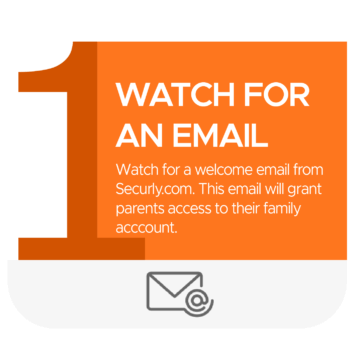
Locate the parent invitation email from Securly.com (they use the primary email address on your FACTS account).
-
If you do not see it, check your Junk/Spam folder.
-
Click on the link in the email and accept the invitation to verify your account.
-
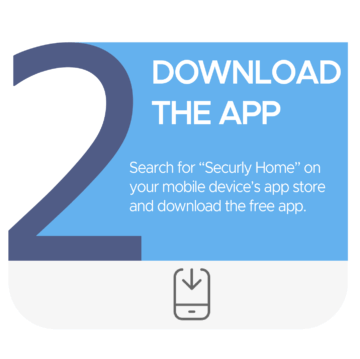
Search for “Securly Home” in your mobile device’s App Store.
-
Download and install the free app.
-
Quick-links are at the bottom of this page.
-
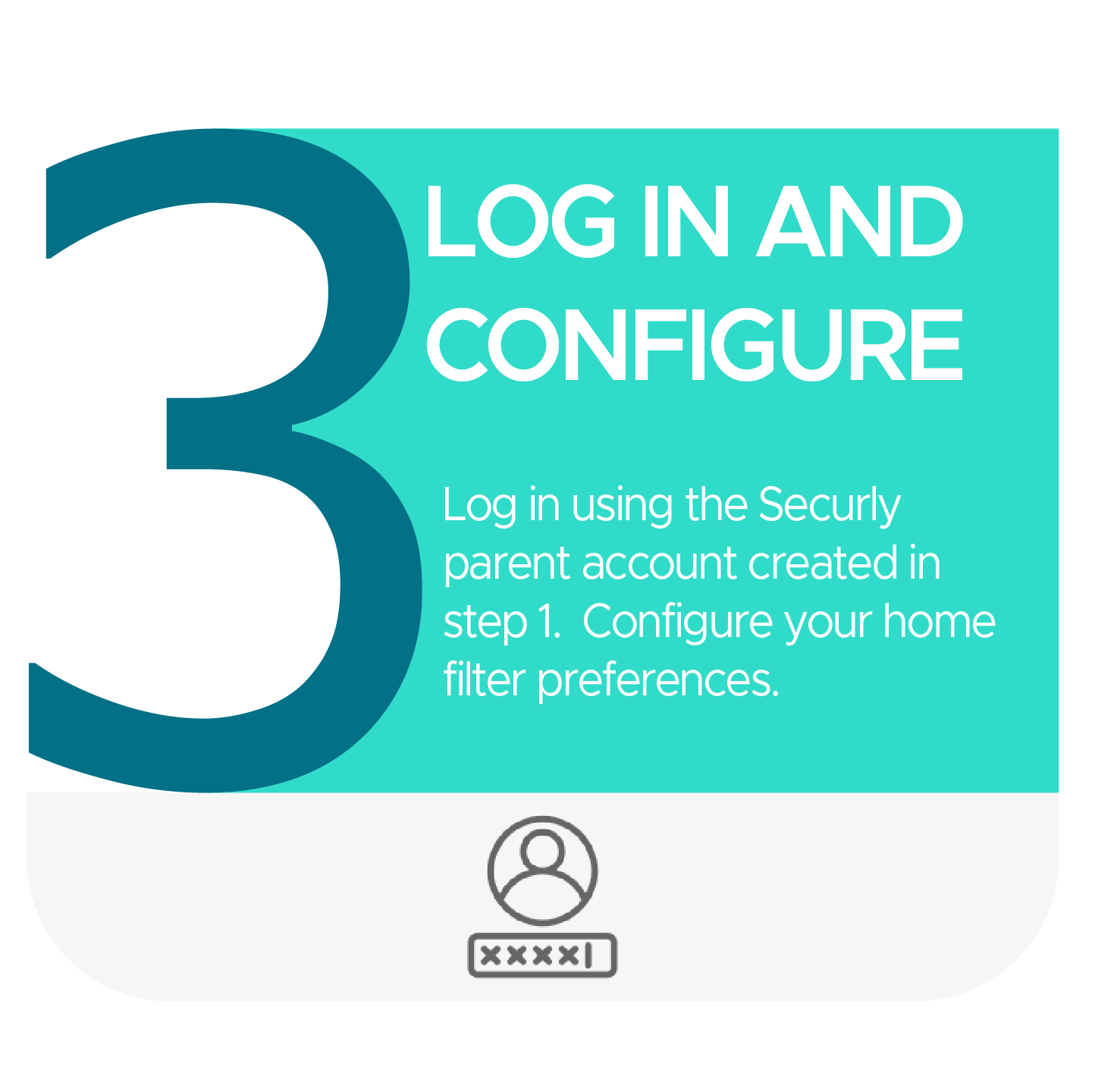
After logging into the Securly Home app, you’ll see content-filtering settings you can toggle on or off.
-
Set the filter settings you want for your student’s device. These choices take effect when the student is off the school network—at home, at grandma’s, at McDonald’s, or while using a mobile hotspot.
-
Give your settings a few minutes to take effect.
If You would like to test to see if Securly Home filter is working, visit www.badwebsite.com.
You should see a message from Securly stating that this site is blocked.
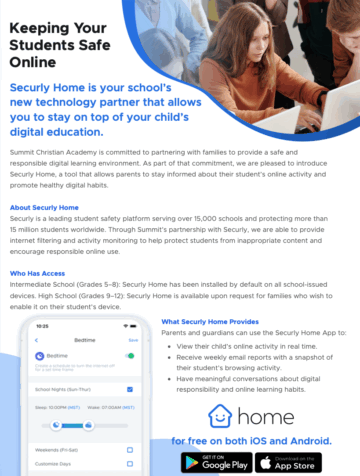 If you would like to learn more and take a deep dive into Secruly, click here for a PDF document with more information.